
FLOWSAM NEW FEATURES AND UPDATES
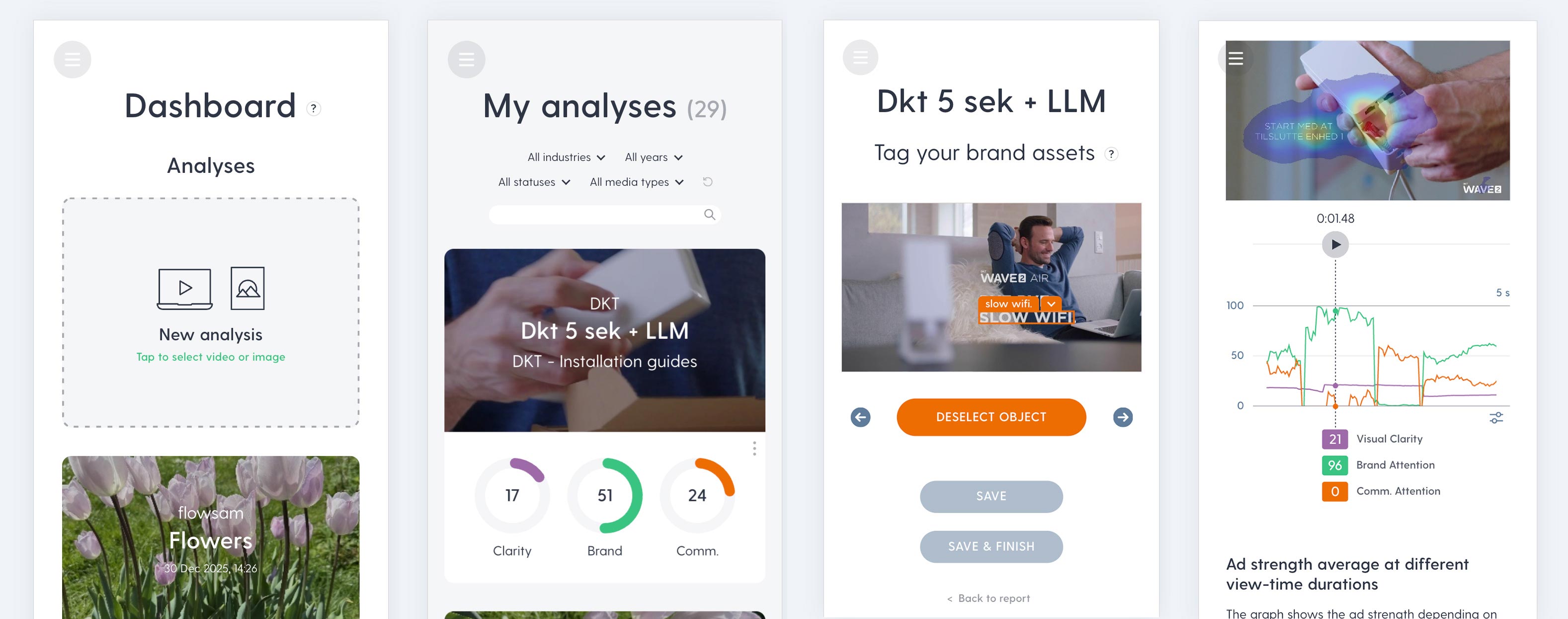
Flowsam on tablet and mobile
Flowsam reports have been accessible and shareable on smartphones and tablets for a while.
But now you can also upload, analyze and tag images and videos directly on your mobile device. Everything you can do on the desktop app you can now do on your phone – except for the keyboard shortcuts.
Need to create an analysis while you’re on the move? No problem – just upload a video or an image from the media library on your device – Flowsam supports most common mobile video- and image codecs.
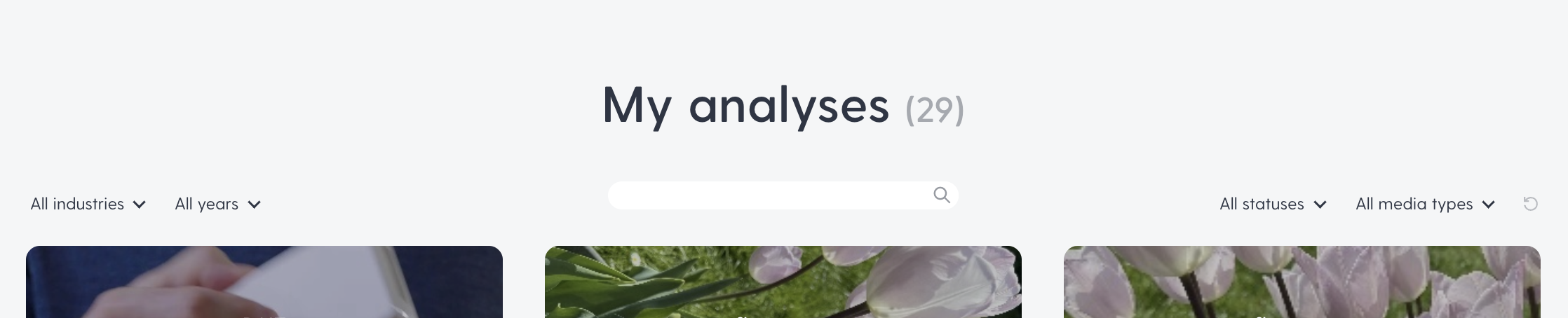
Improved filtering on the analysis list
If you have a lot of analyses in the “My analyses” list, don’t worry. You can now easily find the analysis you’re looking for with the new filtering options.
At the top of the list we’ve added options for filtering on:
- Industry
- Year
- Analysis status
- Media type
You can combine the filters if for example you are looking for finished reports on SoMe analyses in the Retailers industry in 2025. And even perform further filtering with the Search field, i.e on brand, project or analysis title.
Filtering on Analysis status is especially useful if you need an overview of ads you haven’t started tagging or analyses that are work in progress. Or if you just want to see completed reports.
To reset the filtering and go back to the full list, just click the reset icon at the right.
Introducing competitor analyses
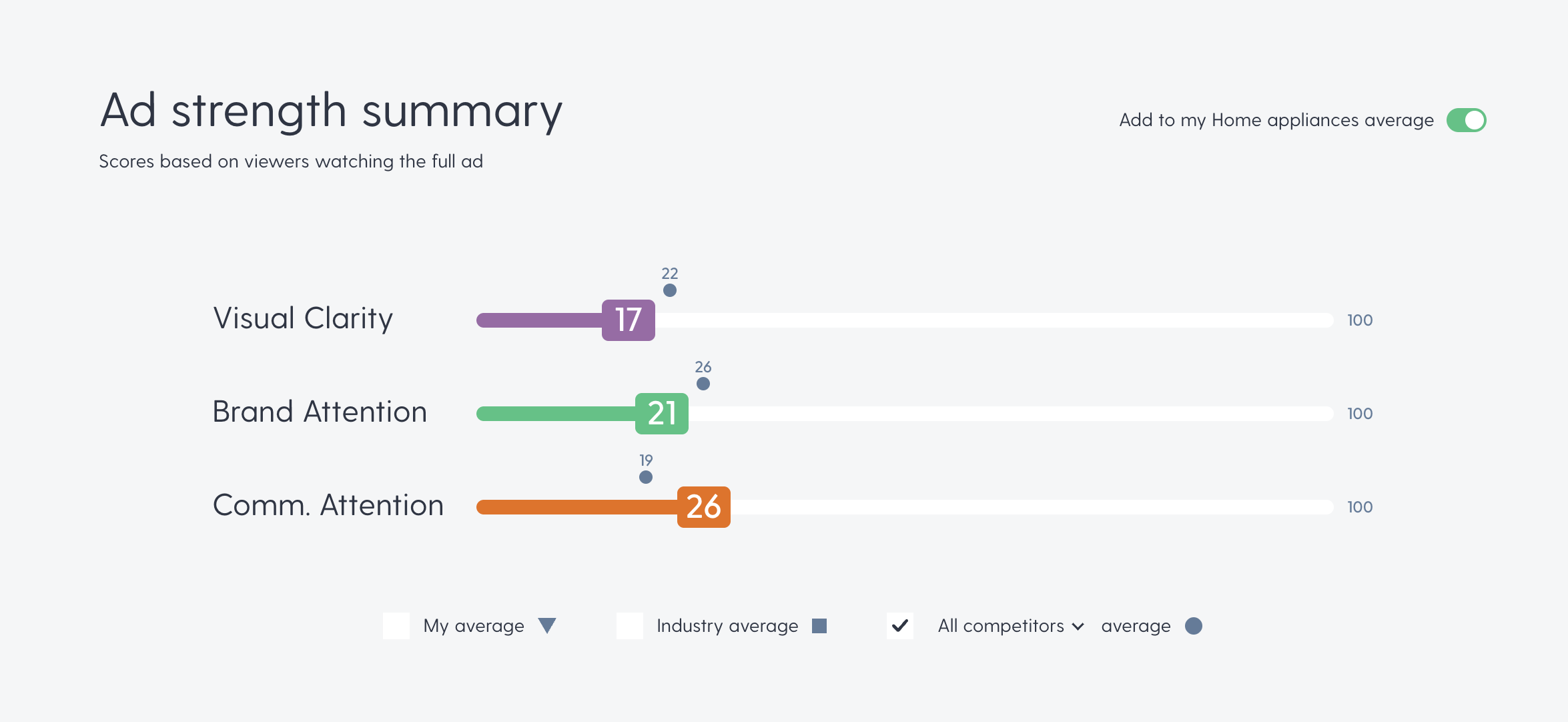
With Flowsam, you can now mark a video- or a still-image ad analysis as a competitor-analysis. This means that you can benchmark your ads against competing brands within the same industry.
Just upload and analyze ads from your competitors and compare the score with your own ads. Either as an average of a specific competitor or as the average of all competitors within that industry.
The competitor’s average will be marked with a round symbol above your ad score in the Ad strength summary section of the report.

Still image gaze flow prediction
The Flowsam heat map on a still image ad analysis predicts which part of the ad will get the most attention.
But your audience doesn’t just stare at the same spot during ad exposure. Even though a still ad has no moving parts, the viewer’s attention shifts between different areas of the ad depending on which elements have the most saliency. This mechanism has always been utilised by the best ad designers. We call it “Gaze flow”.
Flowsam now predicts the journey the eyes will take within the first few seconds of ad exposure. This will help you prioritize the size and position of the most important elements of your ad and control the order in which the content is consumed.
The gaze flow is now included in the full-resolution heatmap image when you download it from the Flowsam report.
Tagging brand assets just got a lot easier
A key part of creating a Flowsam analysis is when you tell (tag) which objects in your ad are important/distinctive brand assets and messaging.
Previously, this required you to step through the video frame by frame and tag any object detected by Flowsam that added value to the ad’s branding and also mark its asset type. The tagged objects would then contribute to the ad’s score and be added to the final report. Precise tagging is important for getting the best result, but the process could in some cases be time-consuming – especially for long video ads.
We’re now introducing “Easy tagging” – a new way of tagging objects that works a lot faster.
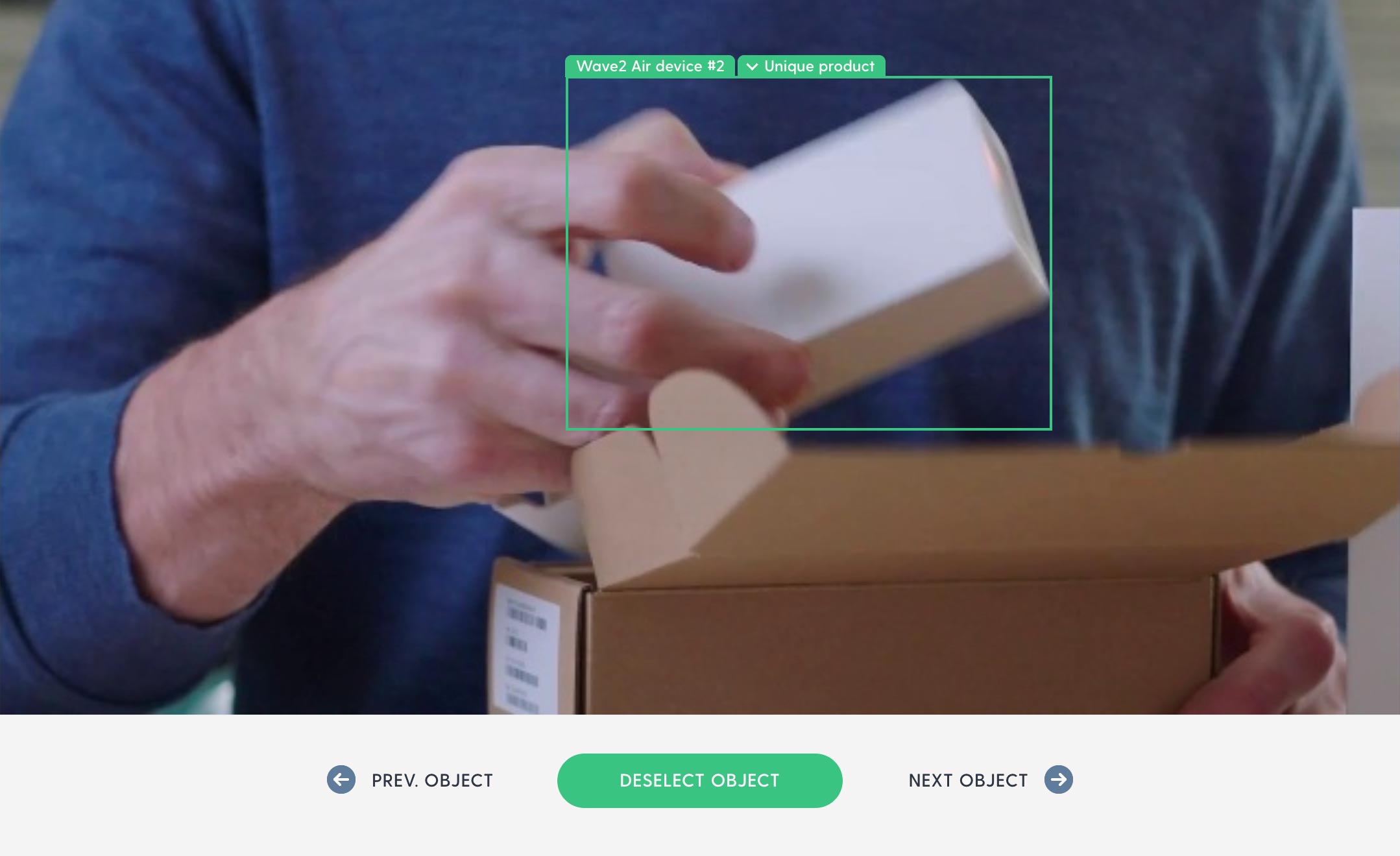
With Easy tagging, you step through the detected objects one object at a time instead of frame by frame. An object in a video can easily span multiple frames, so jumping between objects instead of frames goes a lot faster. Tagging can be done exclusively with keyboard shortcuts, so you don’t need a lot of mouse movement and clicking. Just use the right- and left arrow keys to navigate and the space key to tag.
Flowsam automatically detects if a tagged object is Messaging (marked with orange) or Brand (marked with green). And it recognizes most brand logos and immediately marks them as a logo asset type. If a logo isn’t recognized or an object belongs in another category, it can easily be changed.
You can still mark an object’s asset type during tagging, but you don’t need to (which makes the process faster). You can do that afterwards in the report – or you can skip this entirely if it’s not important for you to group the tagged objects by asset type in the report.
Happy tagging 😀